

This guide shows how to configure a DirectAdmin admin backup (sometimes searched as “da admin backup“) to run daily, weekly, and monthly for all user accounts. It includes tested cron values, the default storage path, and a quick way to run it immediately.
Overview
After finishing your DirectAdmin install, create three scheduled DirectAdmin Admin Backups (daily, weekly, monthly) to preserve user and admin account settings. The default stored path is /home/admin/admin_backups. This rotation overwrites the oldest backups (roughly 30 days), but you can adjust retention if needed.
Create a DirectAdmin Admin Backup schedule
You can now follow this step-by-step checklist to produce a daily, weekly, monthly automatic schedule of the DA admin backups.
- Open: http://server-<your server IP address>.da.direct:2222/
- Replace “<…>” using your ip address, where shown.
- Logon as the administrator.
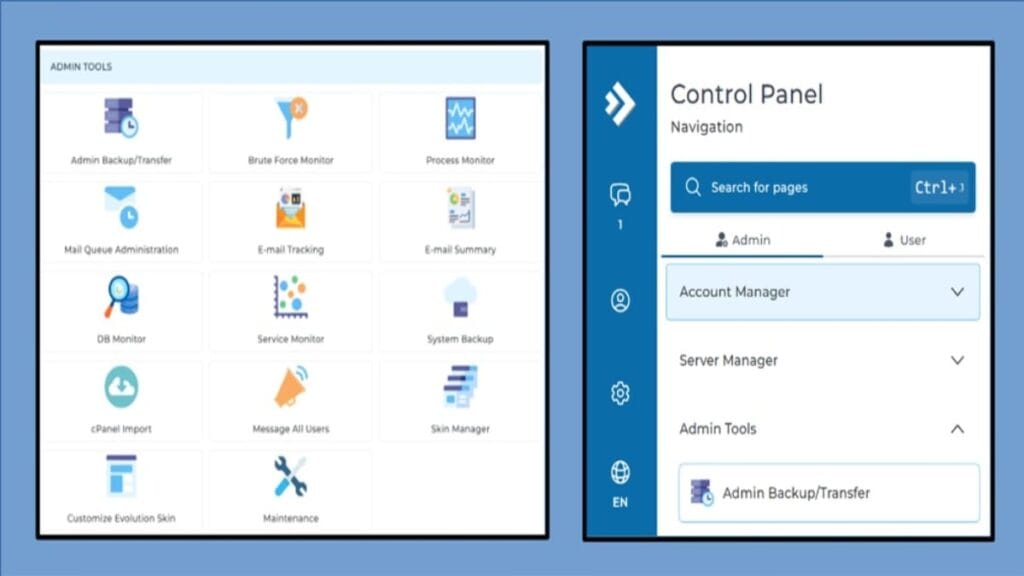
- Open the Administrator’s Backup/Transfer wizard.
- In DirectAdmin, navigate: Admin → Admin Tools → Admin Backup/Transfer.
- Click <+ Schedule> to start the wizard.
- Select scope
- Choose “All Users” and click <Next Step>.
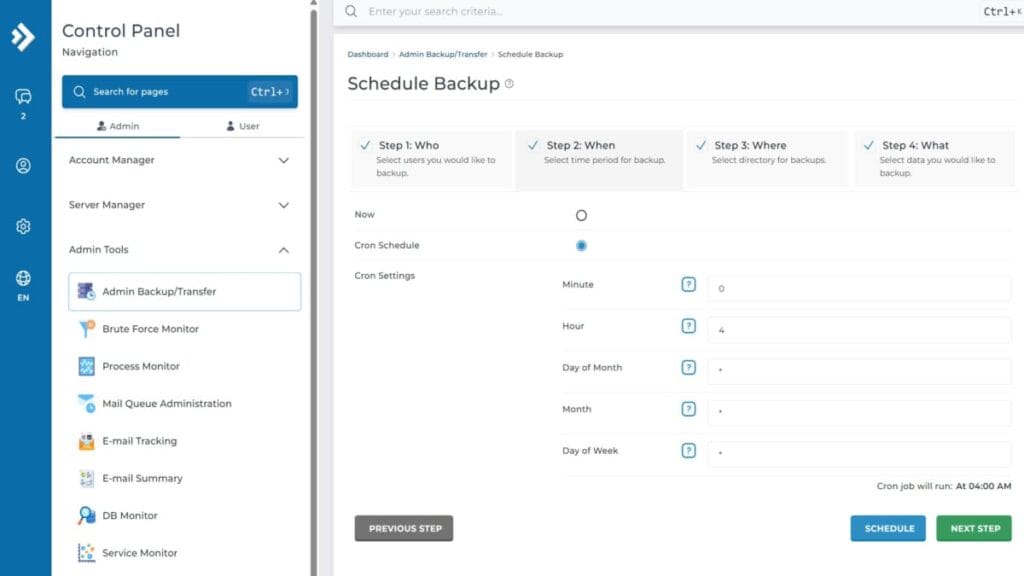
- Set the Cron Schedule (use one set for each schedule
- Daily (recommended first schedule)
- Minute: 0
- Hour: 4
- Day of Month: *
- Month: *
- Day of Week: *
- Note: creates a folder per day when it runs.
- Weekly
- Minute: 0
- Hour: 5
- Day of Month: *
- Month: *
- Day of Week: 0
- Note: creates a week-number folder for the month.
- Monthly
- Minute: 0
- Hour: 6
- Day of Month: 28
- Month: *
- Day of Week: *
- Note: Day = 28 is reliable across all months; using 31 can fail in short months.
- After selecting values confirm the real-time summary text under the schedule settings.
- Daily (recommended first schedule)
- Storage Selection
- Choose Local and accept defaults. Default path: /home/admin/admin_backups.
- Verify available disk space for backups.
- Click <Next Step>.
- Data selection
- Choose “All Data” (this includes administrator and user settings).
- Click <Schedule>.
- All Data: (selected)
- Click <Schedule>.
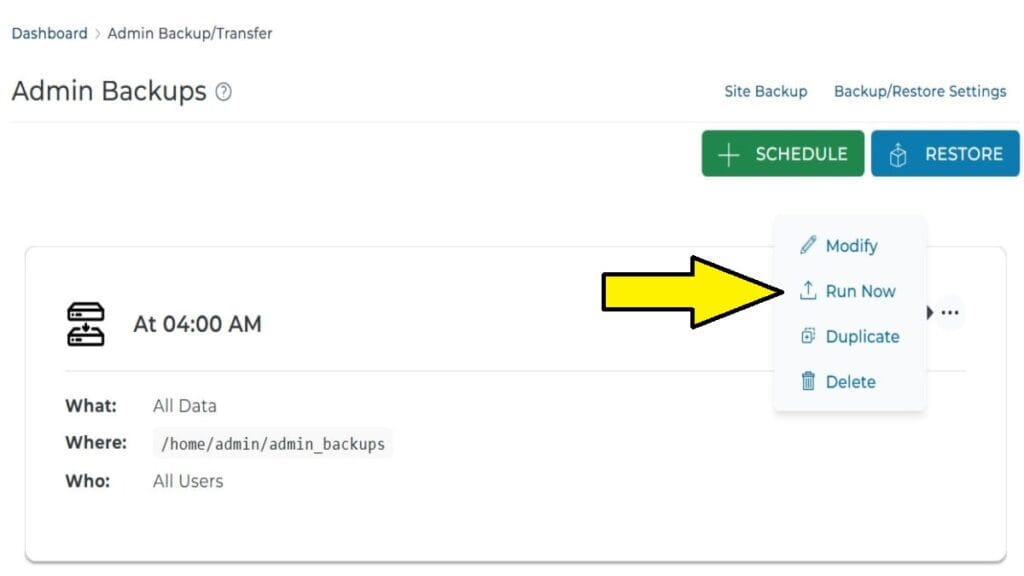
- In the schedule list now shown, for the daily schedule use the ellipses menu → Run Now to create an initial backup for verification.
- Repeat steps to create weekly and monthly schedules (total = 3).
Where DA Admin backups are stored
- Default location: /home/admin/admin_backups
- Check disk usage periodically and adjust retention or move backups off-server if you need longer history.
Quick troubleshooting tips
Here are some expert tips for managing a DirectAdmin admin backup
- If a monthly job fails on day 31, switch to day 28 as shown above.
- If you need a manual backup at any time, use the schedule’s option to “Run Now” action for any scheduled task.
Related
Here are some DirectAdmin related guides.
- DirectAdmin Install: Step-by-Step
- DA Admin Backup/Transfer official help
- DirectAdmin Passwords – Change, Reset & Protect Directories
Next Steps: Installing OpenLiteSpeed for High Performance
This is in succession of setting up a really good & stable VPS for your websites, even if you have just one. Installing OpenLiteSpeed web server is extremely easy as all the research and testing has been done.
- See the guide on how to easily install free OpenLiteSpeed web server.