
Purpose
This post covers the first and most foundational step in domain onboarding: creating the account domain in DirectAdmin.
The account domain is the first domain added to a DirectAdmin VPS. It is unique per VPS and establishes the baseline object that all downstream systems reference, including DNS, SSL, mail, and PHP.
Some of these steps are a one‑time operation per VPS. All additional domains added later reuse some of the foundation established here.
Scope and Applicability
- Applies to the Account Domain only, i.e., the very 1st domain on the VPS.
- Some steps are performed one time per VPS
Prerequisites
- DirectAdmin is installed and accessible
- Platform Readiness is complete
- System packages and CustomBuild updates are current
- A backup exists prior to making domain‑level changes
If updates are required, complete them before continuing:
Checklist to Create the Account Domain
- This 1st domain is considered the “Account Domain” for this server. Also, it will have steps to create the nameservers using this account domain name.
- Logon at: http://server-<Server IP Address using hyphens instead of dots>.da.direct:2222
- From DirectAdmin Control Panel | Admin
- Go to top far right & tap “No domain”, followed by
. - Domain: <Account Domain Name>
- Options: (default = all selected)
- Click
. - Operational Note: The prompt completion conveys it has also added “A” records resolving nameservers, only if previously identified during the custom DirectAdmin install. This has been reviewed to work well.
- Just tap <Close> after reviewing.
- You’re done. Review the rest of this page and go to Next Steps to continue.
Operational Notes
- At this stage, SSL is not automatically generated yet but that’s coming up in the SSL section soon, if you’re following the complete setup guide.
- Once submitted, DirectAdmin creates the domain object and makes it available throughout the control panel.
Immediate Confirmation
Before proceeding, confirm the following:
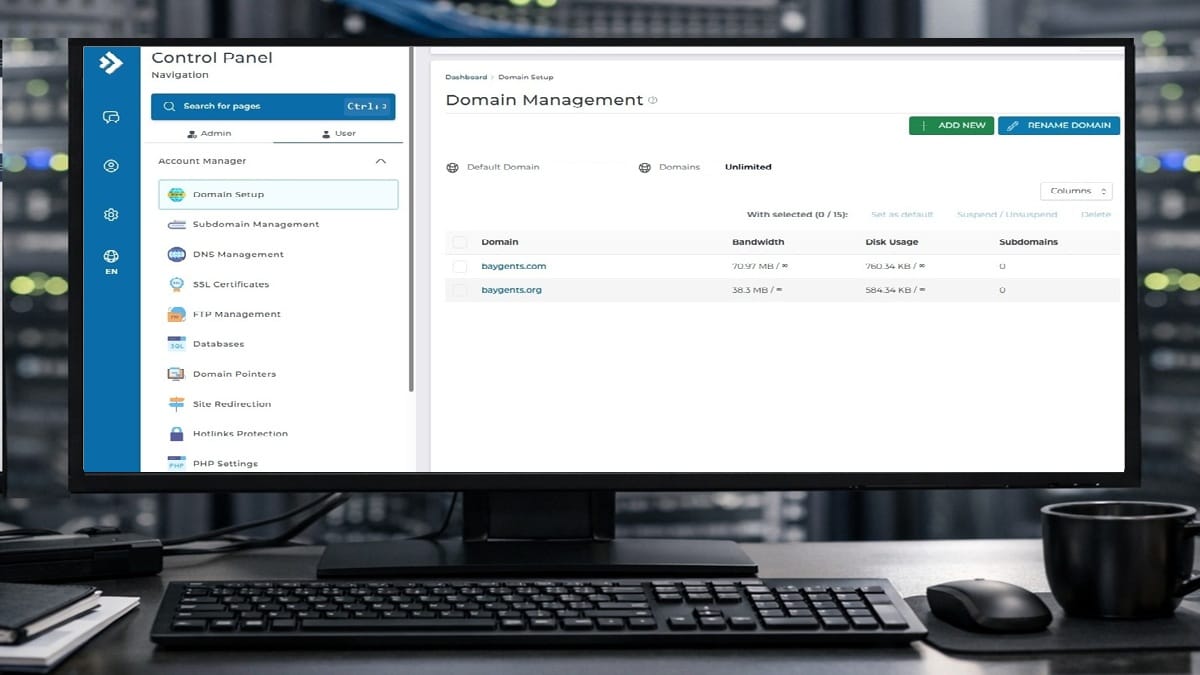
- The domain appears in domain listings
No configuration changes are performed yet. At this stage, the goal is existence and visibility only.
Stop Point
The account domain must exist before these listed areas can be performed safely and predictably. So, do not configure any of the following yet:
- PHP settings
- DNS records
- SSL certificates
- Mail services or authentication
Next Steps
Depending on what brought you here, you can easily return to that exact area on the page. Just, click any of these specific areas or checklist sections you recognize that led you here.
- Complete Setup Guide: Return to section “Add a Domain to the VPS” and continue after Option 1 – Add the 1st Domain…
- Domain Management: Return to this landing page overall for complete Domain Management topics.