
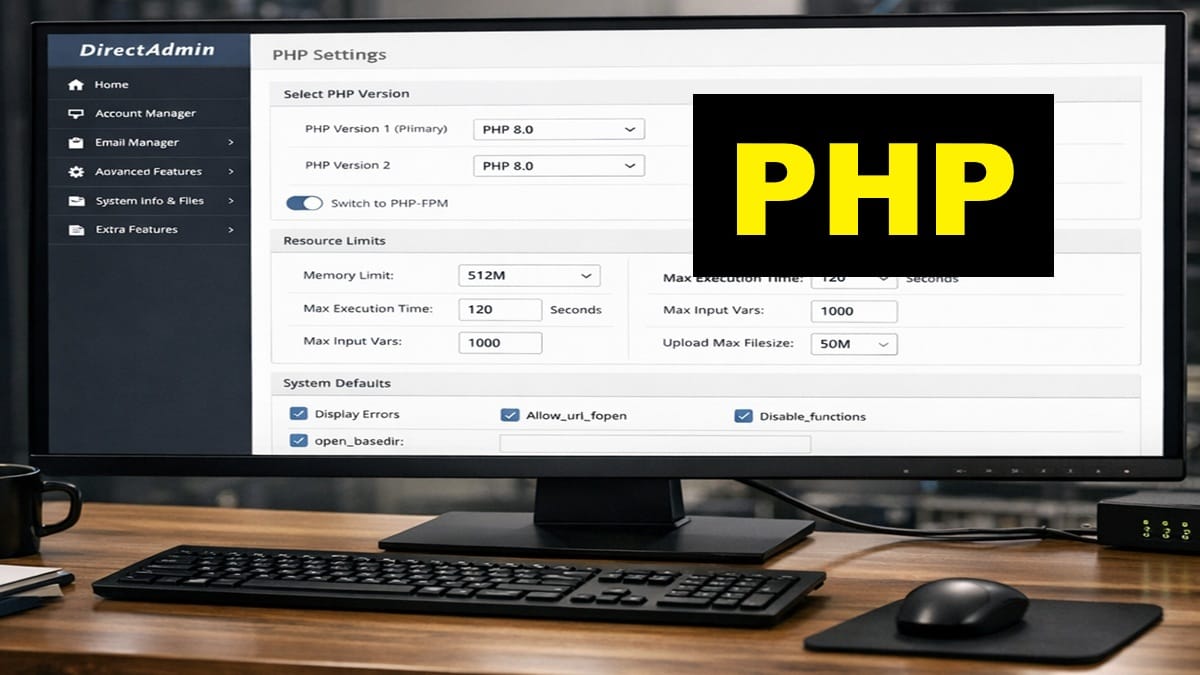
This is done individually for all domains. This updates PHP.ini file (or is a virtual equivalent). Some PHP Settings weren’t set until now, since the domain was just created. Also, read the Bricks Builder server requirements.
Scope and Applicability
- Applies to any domain individually
- They are to be applied before DNS, SSL, and mail configuration.
Prerequisites
- The domain has already been created in DirectAdmin
- DirectAdmin is accessible at the Admin level
- No DNS, SSL, or mail configuration has been started yet on the domain
If system updates are pending, complete them before continuing:
Follow the canonical procedure here.
- Operational Notes:
- Several of these PHP Settings typically meet or exceed Kadence & Bricks Template & Block Requirements.
- These PHP Settings are being referenced as PHP Overrides by DirectAdmin.
- These settings define: handlers and execution mode, PHP version selection, & resource limits.
- Do not customize PHP on a per‑domain basis at this stage. Remain focused only on this domain.
- From DirectAdmin Control Panel | USER:
- Go to <Account Manager> | <PHP Settings>.
- Ensure correct domain is selected (in top right area).
- Operational Note: Must refresh browser screen to reflect current settings.
- If available, select PHP version and apply the following settings.
- Max execution time helps ensure pCloud file uploads & downloads have a good performance.
- Max upload size is flexible. I have them high so I can upload large files into File Station.
- To prevent an upcoming WP Site Health notification, try to make post_max_size be HIGHER than upload_max_filesize.
- From “Add New Override”, just select setting you want from the dropdown box, Then, tap
. Below are the new settings to Add so you can then update each setting. - Operational Note: This setting does exist but isn’t displayed on the existing list (so, don’t add it again):
- allow_url_fopen: enable
- max_execution_time = 300 (default was 30). Tap to <Add>. 180 is Min for Bricks Builder.
- max_input_vars = 2500 (default was 1000). Tap to <Add>. 2500 is Min for Kadence.
- memory_limit = 368M-1024M (default was 128M). Tap to <Add>. Use higher amount for anticipated large or complex sites. 250M is Min for Kadence.
- At this point, it will start giving a popup msg listing the latest changes. Just tap <Close> each time from this point forward.
- post_max_size = 128M (default was 8). Tap to <Add>. (MUST be larger than upload max)
- upload_max_filesize = 64M default was 2M). Tap to <Add>. (>=64MB for Bricks Builder)
- Tap <Save>.
- Operational Note: This setting does exist but isn’t displayed on the existing list (so, don’t add it again):
- If PHP versions are selectable, repeat above steps for all other PHP versions.
Stop Point
Do not perform any of the following yet:
- Add or modify DNS records
- Issue or assign SSL certificates
- Configure mail services or authentication
Those above listed items, covered elsewhere on this site, depend on these PHP settings as required defaults to be in place first.
Next step:
- Most Important: If you were sent here from a checklist, return to it and continue. Otherwise, choose one of the following options:
- For the Account Domain, go to DNS and nameserver prerequisites for the Account Domain.
- For an Additional Domain, go to Configure DNS & Nameservers for an Additional Domain.