
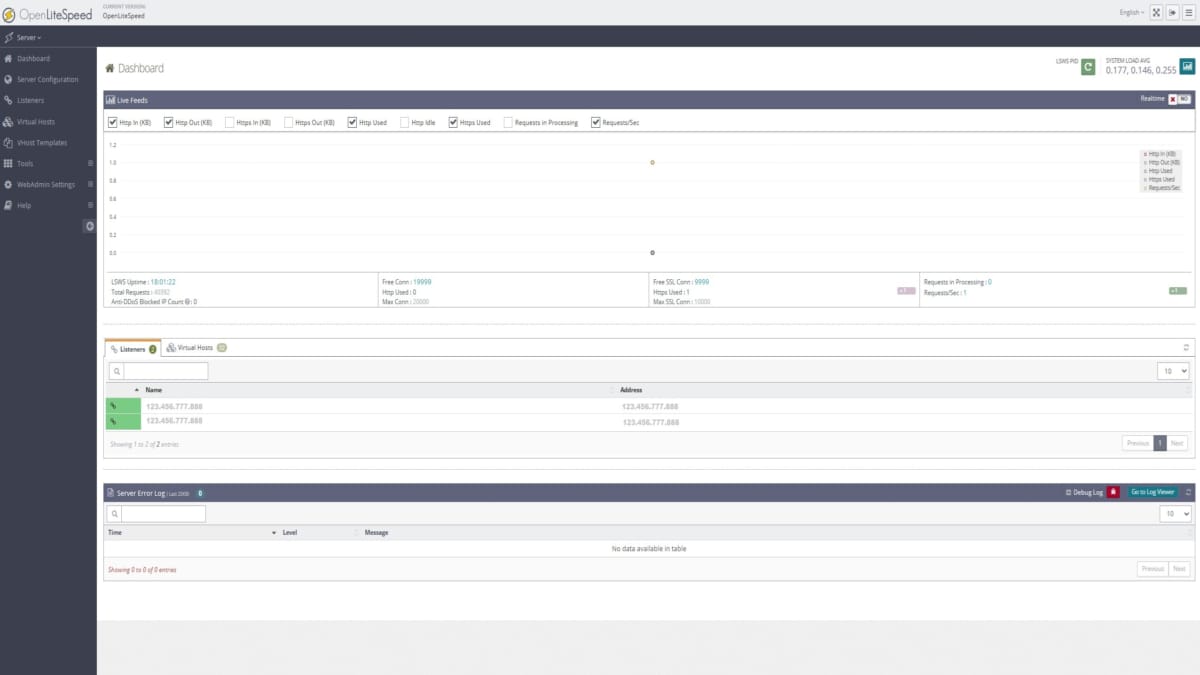
This guide installs OpenLiteSpeed (OLS) on a VPS running the DirectAdmin control panel using DirectAdmin’s build system.
This guide is part of the Platform Readiness phase of building a DirectAdmin VPS.
Scope
This is a CLI-only checklist. It does not cover GUI configuration, optimization, or post-install tuning.
Prerequisites
- VPS with DirectAdmin installed
- Optional, but recommended: Ensure DirectAdmin has backups setup. See “How to create a DirectAdmin admin Backup“.
- Root or admin SSH access
Installation Steps
- Connect to the server via SSH.
- Run the following code block commands in order.
- Also, read the steps in-between to know what happens and what to do for each current and next step.
Code Block 1. What this does: Sets & Installs OpenLiteSpeed, & sets LiteSpeed’s php
da build set webserver openlitespeed
da build set php1_mode lsphp
da build openlitespeed
- When the install process finishes, after about 1 minute, document the revealed OpenLiteSpeed admin password to your Password Manager System.
- Then, perform the next code block.
Code Block 2. What this does: It Installs the php for OpenLiteSpeed
da build php
- This php building takes about 4–5 minutes. Be patient.
- Leave alone the terminal session running and let it stay as being active. Don’t do any other tasks on the server or the client PC used to connect to the server.
- When the OLS (OpenLiteSpeed) install is done, you can confirm its admin login works.
- Now, since this install is completed, you will now be using a special LiteSpeed’s version of php. DirectAdmin manages it well; just continue to follow the remaining steps and guides to finalize the php and the important tasks after that.
Code Block 3. What this does: This updates important .conf files
da build rewrite_confs
- Let this process run; it’s not too long.
Code Block 4. What this does: This reboots the server.
reboot
- This is an absolute requirement; it reboots the server, which also forces your terminal session to end.
Post-Install: What’s Next?
After reboot, OpenLiteSpeed is active and needed portions are managed through DirectAdmin. You then should immediately proceed to apply some CustomBuild Options, as explained next.
Next step:
After installing OpenLiteSpeed, by following all the above steps, there are some required updates to do in DirectAdmin. Go here to apply “CustomBuild Requirements After OpenLiteSpeed Install” in DirectAdmin.
Related Articles on OpenLiteSpeed (OLS)
- Official OLS site: https://openlitespeed.org/
- Comparing 3 most popular (apace, nginx, OLS): https://serveravatar.com/apache-vs-nginx-vs-openlitespeed-which-is-better-for-your-site/
- compare OLS with Enterprise LiteSpeed: https://www.litespeedtech.com/products/litespeed-web-server/editions