
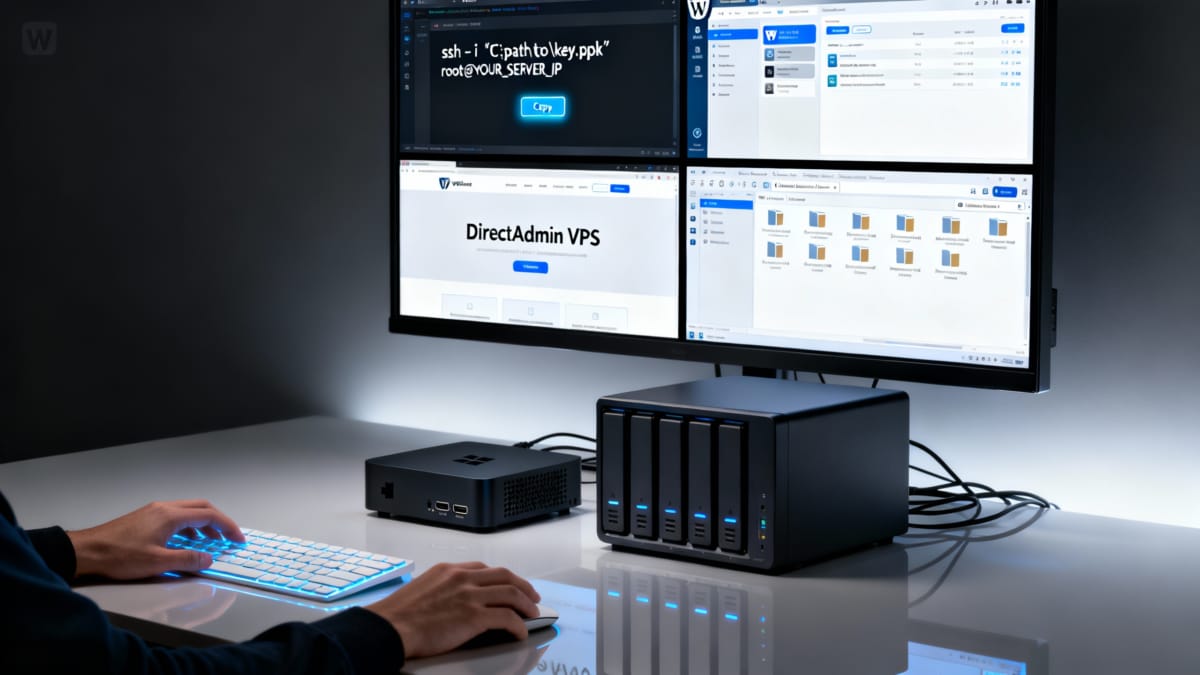
This checklist shows an example host (SpeedyPage) VPS installation and then uses exact CLI steps on how to set up a Linux VPS. You’ll see how to create a new unmanaged Linux VPS (AlmaLinux 10 example). If you haven’t picked a provider yet, read how to select the right unmanaged VPS host provider so you start provisioning from a solid infrastructure.
It will be configured and ready for easily installing a web server and a web control panel such as DirectAdmin. It follows a strict order of operations and excludes user creation and firewall steps that will be handled later by DirectAdmin (CSF). Local-machine instructions focus on Windows PCs (PuTTY, WinSCP, PowerShell/OpenSSH).
Table of Contents
What is a VPS?
A VPS is a Virtual Private Server, also sometimes referred as a VPS Server. They always first require a physical server to exist. Then, special software is installed to enable a physical server to create multiple software-based servers to co-exist and run on the physical server. Networks then recognize the physical servers and virtual servers all as servers. The reason for creating virtual servers is because it’s very cost-effective and can be used for hosting them out for lots of things like web servers for websites. Learn more on Google Cloud’s article “What is a Virtual Private Server (VPS)?“
What is an Unmanaged VPS?
An unmanaged VPS is a virtual private server that typically does not come with a control panel. Also, you usually don’t get detailed support for how you use your hosted VPS. Finally, you may not get very many features included like fast bandwidth, mail server, antivirus, SSL, and so on. But, hosts, like control panels, differ a whole lot on their offerings. So, read more about “Unmanaged vs Managed VPS” to learn more of those details. Finally, here’s an example of a real, good host, SpeedyPage.com high performance unmanaged VPS plans, the one that this site is running on.
0 — Before you begin
If you haven’t chosen a host yet, read how to Select a VPH Host Provider. It also has a shortlist of common providers.
1 — Checklist to Prepare the VPS Setup — Host Provider Configuration
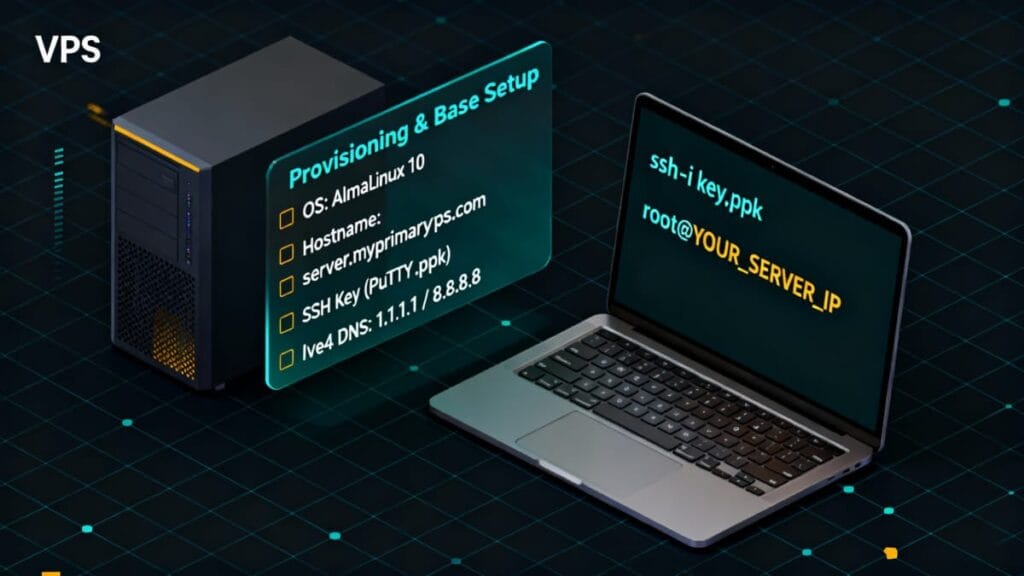
Select and confirm the following in your host dashboard to install Linux as your VPS O/S. Note that these are examples (using host provider SpeedyPage) and you should use your own values:
- Select OS: for example, you might choose >> AlmaLinux 10 (latest).
- NAME: server (This “server name” represents a device/machine name the way it will appear on your hosting account.)
- Domain: <your account domain> (replace this with your actual account domain name to use for this VPS server)
- Hostname: server.<your account domain name> (This host name is your FQDN, i.e., it should be your server’s name, e.g., “server” or “server1”, a period punctuation, and your intended main account domain name.)
- Login Method: select “SSH Key”.
- Then, follow checklist to create your server’s SSH Key from PuTTY & SSH Access.
- On your own: Plan to read more about what to do with that SSH key for future easy connecting (logging in) to your VPS.
- IPv4 resolvers: leave defaults (1.1.1.1 / 8.8.8.8)
- Many hosts have an “Auto Configuration” setting you can enable (or disable to manually adjust some settings as is shown using these checklists).
- Some hosts will also have an IPv6 option. Leave it disabled because sometimes it’s not a static IP and it can change. Whereas, the IPv4 commonly is a static IP, required for VPS servers.
2 — Create New VPS (host UI)
- Click <Create> to start the VPS installation and its setup. It will use your initial settings from the previous steps.
- Wait until the new VPS instance shows ready, then proceed to next steps to perform further checklists to finish this VPS setup and configuration.
3 — Connect to VPS using SSH login (Windows PC)
Test SSH access using your private key from your Windows PC and the app “PuTTY”.
code Block 1. Use SSH Access Method to Connect to VPS
There are 2 methods shown to access your VPS system and both use SSH. Use either one and then follow subsequent checklists to execute more tasks to configure this VPS further.
- VPS Access Method for Terminal users: This uses Code Block 1. Copy the following and update with your own values, such as local path leading to your PPK file, and your VPS Server’s IP address.
ssh -i "C:\path\to\servermyprimaryvpsPrivateKey.ppk" root@YOUR_SERVER_IP
- VPS Access Method for PuTTY users: load the .ppk in PuTTY and connect to root@YOUR_SERVER_IP. Use WinSCP with the same .ppk for file transfers.
2 — Set VPS Server Hostname
ONLY if you didn’t Set the server’s FQDN on the instance. These are done while connected to your VPS within a terminal session.
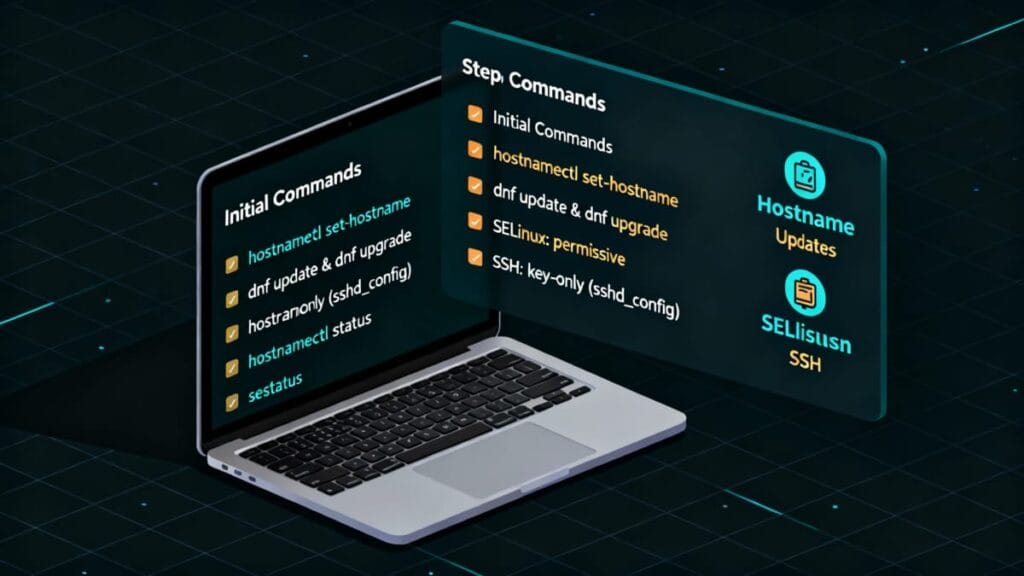
Code Block 2. Assign the server’s name (FQDN)
- Run scripts ONLY if you weren’t able to define your server’s full host name before installing the VPS. Replace “server.myprimaryvps.com” with your chosen server’s name (dot) <your account domain name>.
- For more reading, see Redhat’s article on various host control configuring naming options.
hostnamectl set-hostname server.myprimaryvps.com
hostnamectl status
3 — Update & Install Dependencies with EPEL
Now, install “epel” (Extra Packages for Enterprise Linux). These items also include some dependencies. It’s a part of strong recommendations and some pre-requisites for DirectAdmin.
Code Block 3. Install updates
dnf update -y
Code Block 4. Install epel & required dependencies
dnf install -y wget epel-release
4 — Update System Packages — Example: AlmaLinux
In learning how to set up a Linux VPS, that includes ensuring the the system fully up to date.
Code Block 5. Check and apply any available server updates
sudo dnf check-update && sudo dnf update
Important: Keep your SSH session open until updates finish.
5 — SELinux Disabled (DirectAdmin requirement)
Many popular web control panels require or recommend this action. Disable SELinux status when your control panel requires or recommends it.
Code Block 6. Disable permissions to “SELINUX” & reboot
rpm -q grubby && sudo grubby --update-kernel ALL --args selinux=0
reboot
Only apply permissive if required at this stage. DirectAdmin install guidance will define exact latest Linux needs.
6— Resolver settings
Leave system DNS resolvers at host provider defaults, unless a change is required.
You’re ready for Connecting to Your VPS
Once your Linux VPS is updated and configured up to this point, you’re ready to connect to it using a terminal session.
Next Steps
Depending on what brought you here, you can easily return to that exact area on the page. Just, click any of these specific areas or checklist sections you recognize that led you here.
- Complete Setup Guide: Return to section “Install an operating system onto unmanaged VPS host account, for your Account Domain” and continue after Follow this checklist to install Linux & Setup the initial VPS.